Portal
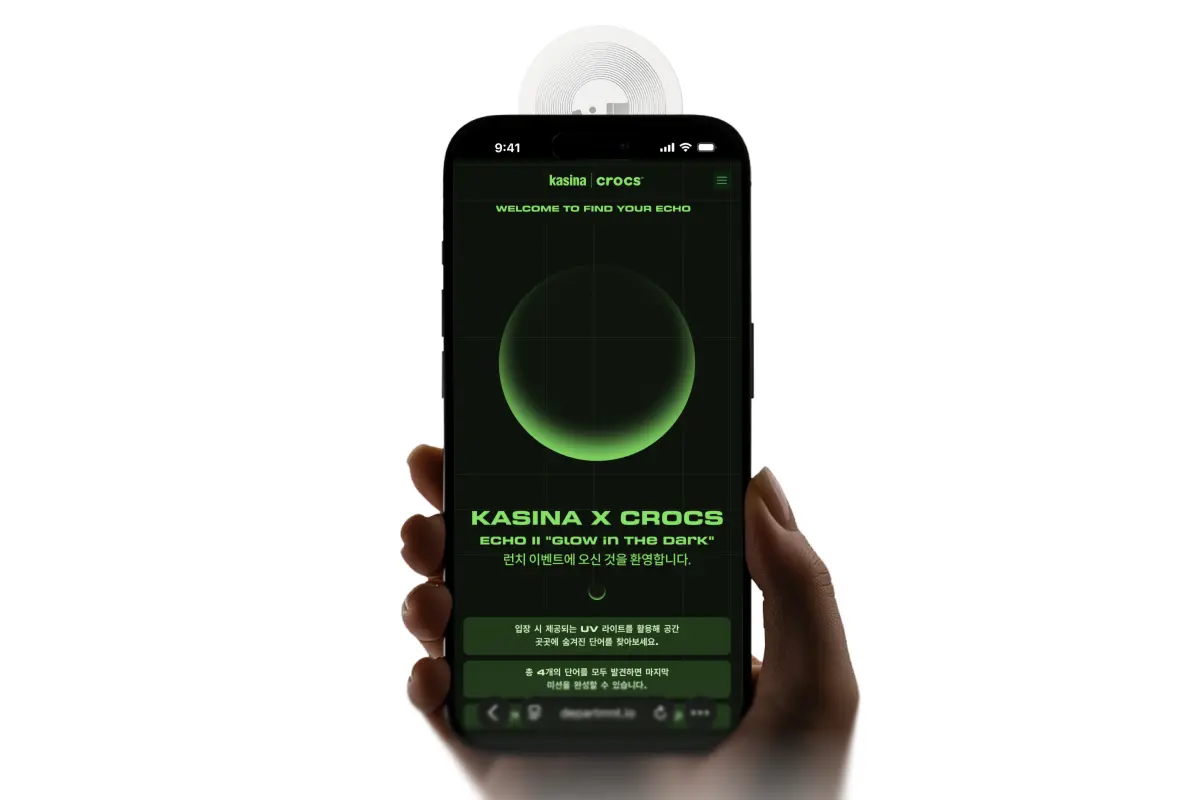
The page a tap opens: a modular, no code builder in a feed format, served at [brand].departmnt.io.
The Portal is the page a tap opens: branded, yours, with no app, no download and no account before anything happens. This page explains what a Portal does, its screens, how gating and theming work, and where it is served.
What a Portal does
A Portal is a modular, no code builder in a feed format. It is built from modules and a theme, so no developer is needed.
- Opens on a tap. A phone against a tag, and the page is there. No install, no store, no waiting.
- Knows who is holding it. A returning owner is recognised and sees what they are meant to see. Someone tapping a product they do not own sees that it is real, and where to get one.
- Changes without reprinting. The page behind a tag is updated over the air. The object in the field is finished; what it opens is not.
- Works without a tag. A tag is one way in and a link is another, so the same Portal can sit behind a poster, a story, an email or an object in someone's hand.
A tag also works without a Portal: tags can be programmed to open anything. The Portal unlocks the full journey, and the full picture in Core.
The screens
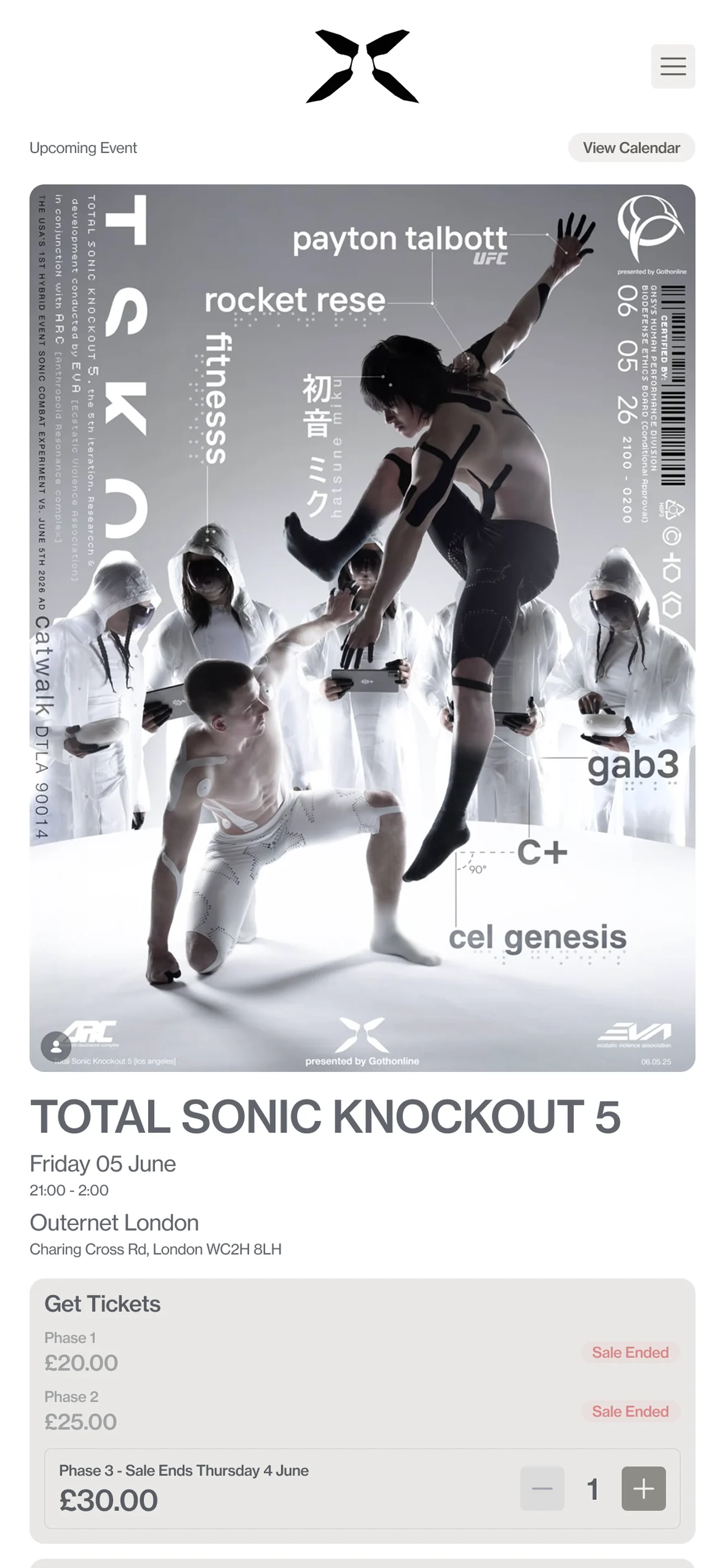
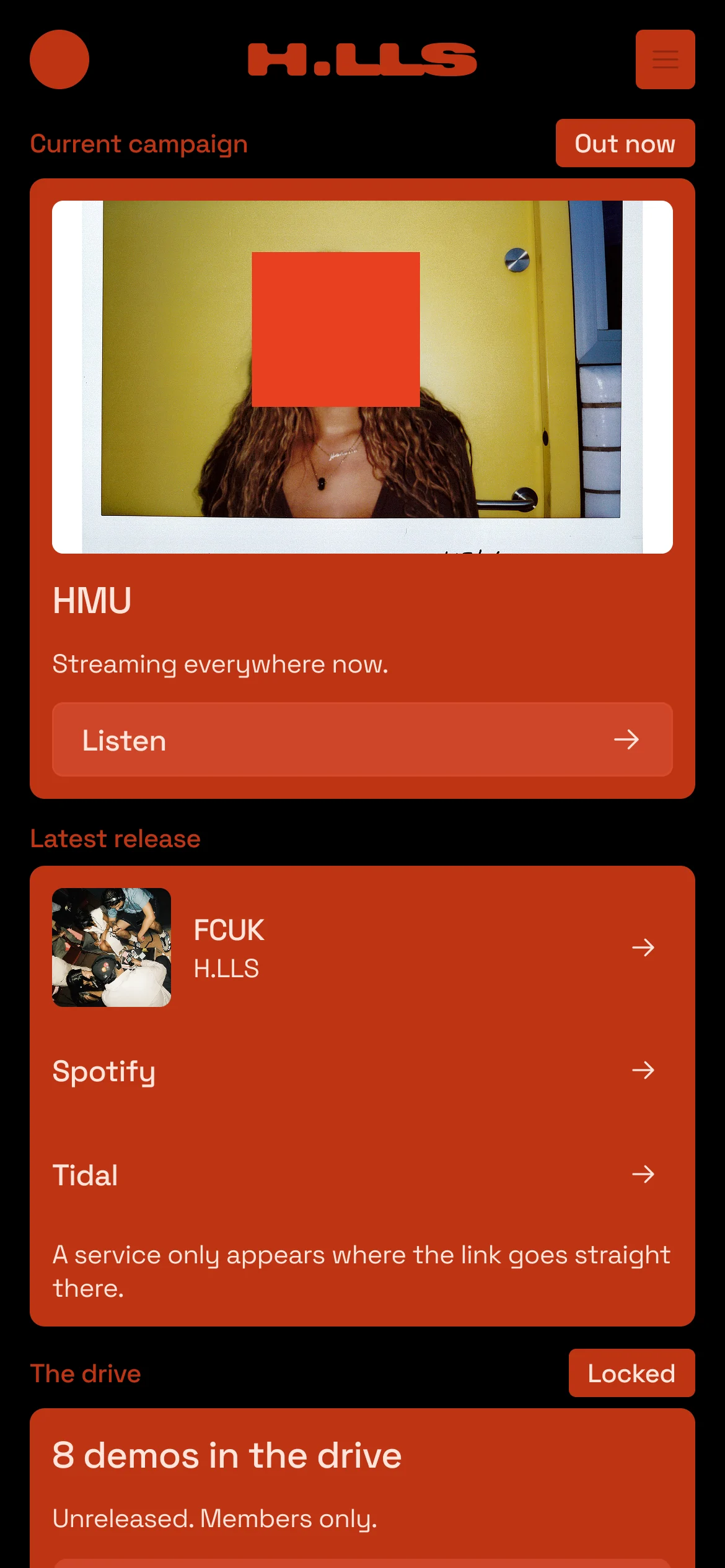
A Portal has four screens.
- DiscoveryWhat anyone sees on a tap or a link: the brand, the product or the moment, before sign up.
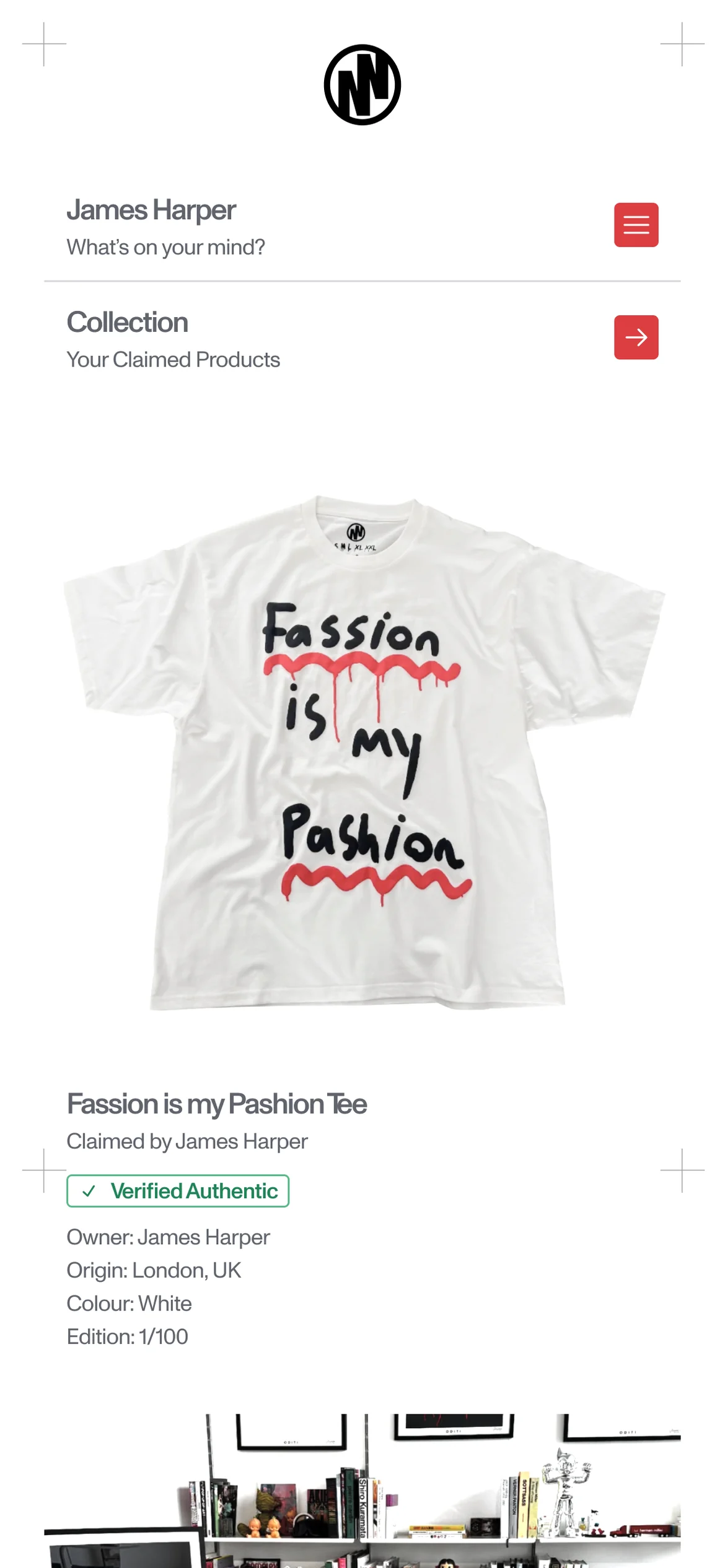
- Sign UpThe signup card: details and consent, which give the fan a DEPT ID. Returning members sign in.
- FeedThe stack of modules, top to bottom, in the order the client set.
- HubThe fan's own area: what they have claimed, their passes and their settings.
The Feed is where most of the Portal lives. Each module is one card in the feed, and a client can add, remove and reorder them without touching code.
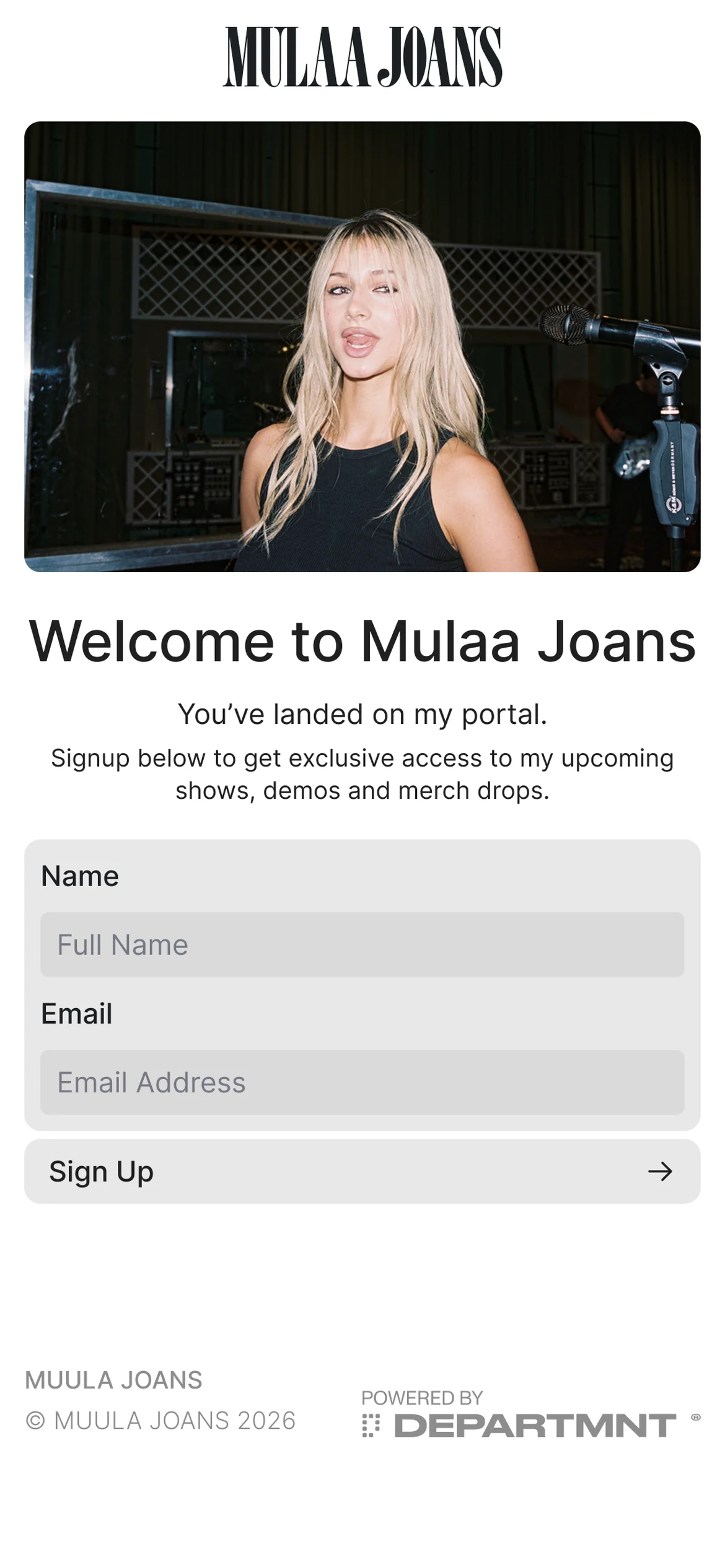
For what sign up captures, see the Signup card module.
Gating
Gating decides what a visitor can see. It is set per module. A Portal can set a default per object type, for example every music module members only, and any module can override it.
| State | What a visitor sees |
|---|---|
| Open | The module as it is. |
| Teased | The real content, blurred, under a gate card. |
| Members only | The module only once they are a member. |
The gate card carries the signup card form.
Teased is the useful middle state. A fan sees that the tracklist, the gallery or the download is really there, and what they need to do to open it.
Tap wall
The tap wall decides how a visitor can enter: open to anyone with the link, or tap required. It is part of Core Access.
Use tap required when being there is the point: a listening event, a drop in store, a piece of clothing someone owns. Use open when the Portal should travel, behind a poster, a story or an email.
Theming
Theming is eleven brand tokens, and never goes beyond them. A client chooses the theme, the corner radius, the colour and the mark. Legibility is checked before a Portal is published.
The brand colour is an accent on buttons and highlights, never the background, and a Portal sits on a white or black ground. A logo is uploaded as PNG or SVG, up to 400 KB.
At Label, a Portal has full brand theming within the eleven tokens. The Portal asset spec in Downloads will list the token names.
Every Portal shows "Powered by DEPARTMNT" unless the mark is removed. Removing it is available from Label.
Tokens keep every Portal legible and every module working. A brand changes how the Portal looks, not how it behaves, so a module built once works in every theme.
Domains and hosts
- [brand].departmnt.io
- Every Portal, one per brand
- auth.departmnt.io
- Where sign in credentials resolve
- departmnt.tech
- Core, the client dashboard
- departmnt.xyz
- The website, with this knowledge base at docs.departmnt.xyz
On Agency and Network, a Portal can run on your own domain; see Tiers.
Tags can be repointed without reprinting. Tags already in the field are encoded against a specific host and cannot move to another. Clients: see Hardware, encoding and QA.
Building a Portal
Every Portal is built and published with DEPARTMNT today. Self serve is a beta for selected Base, Studio and Label clients from Q4 2026, with the full platform going to selected clients in 2027. Which tier switches each capability on is set out in Tiers.
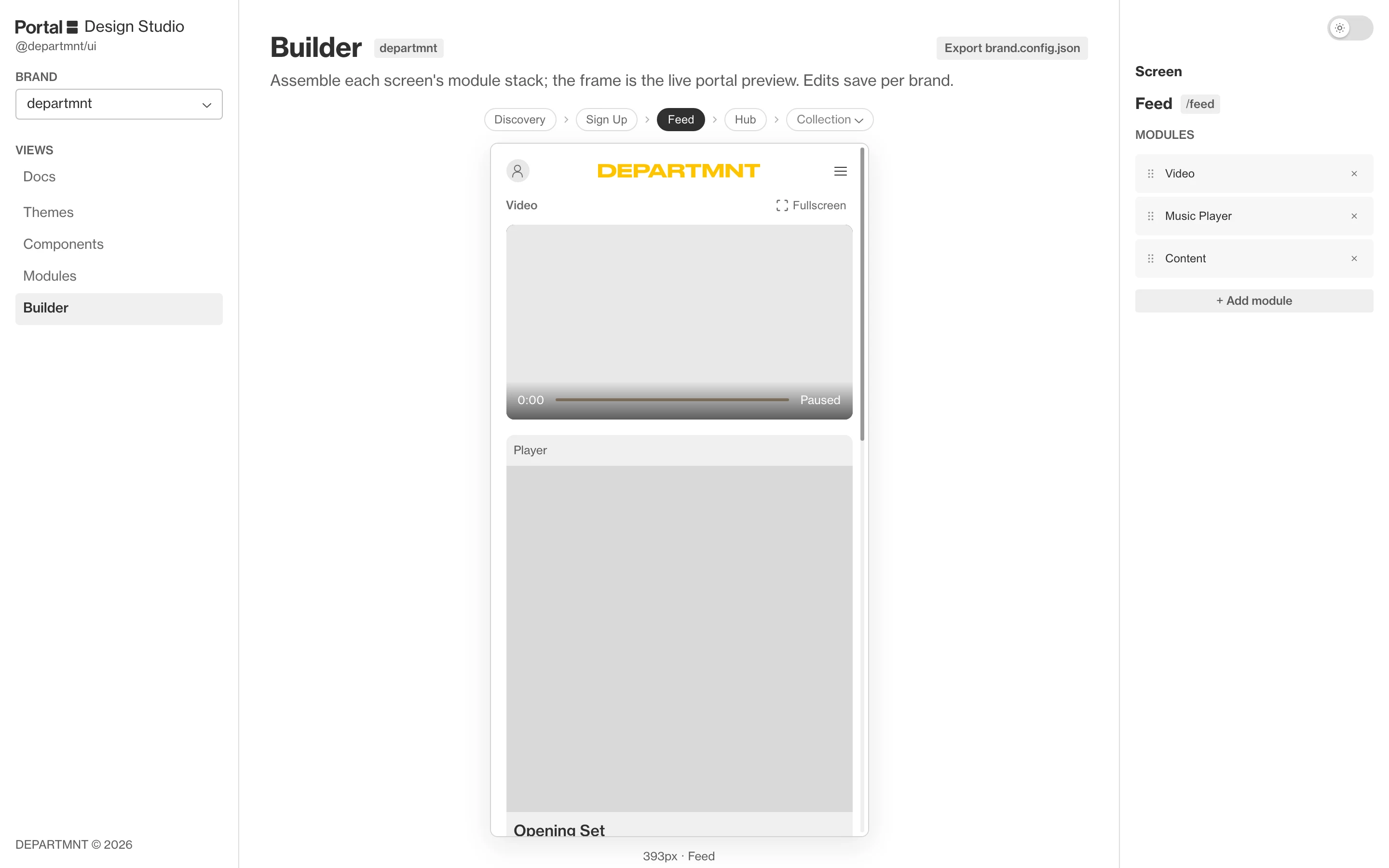
- Choose the modules. Stack the modules for each screen, from discovery to the members' hub.
- Apply the theme. The brand's colours, font and logo carry across every module.
- Set the gate. Each module is open, teased or members only.
- Preview and publish. Check the Portal on a phone, then it is reviewed and goes live.
- Portal build and approval: the steps, what we need from you and the review before launch, for signed clients.
- Portal Design Studio: every module working, as a work in progress that Core replaces in 2027.
- Portal modules: every module, with what a fan sees and what it needs.